Server-Side GTM from Flutter
#sGTM#Flutter#Cloud Run

1. Setting up the Server-Side Environment
Step A: Configure Triggers & Tags
- Go to Google Tag Manager.
- Create a new Container and select Server as the platform.
- Choose Manually Provision Tagging Server and copy your Container Config string. Add Server container URLs (the string from Step C) if there is no Container Config
- In the Client section, make sure there is Google Analytics GA4 (App).
- Client type: “Google Analytics GA4 (App)”.
- Priority: 0.
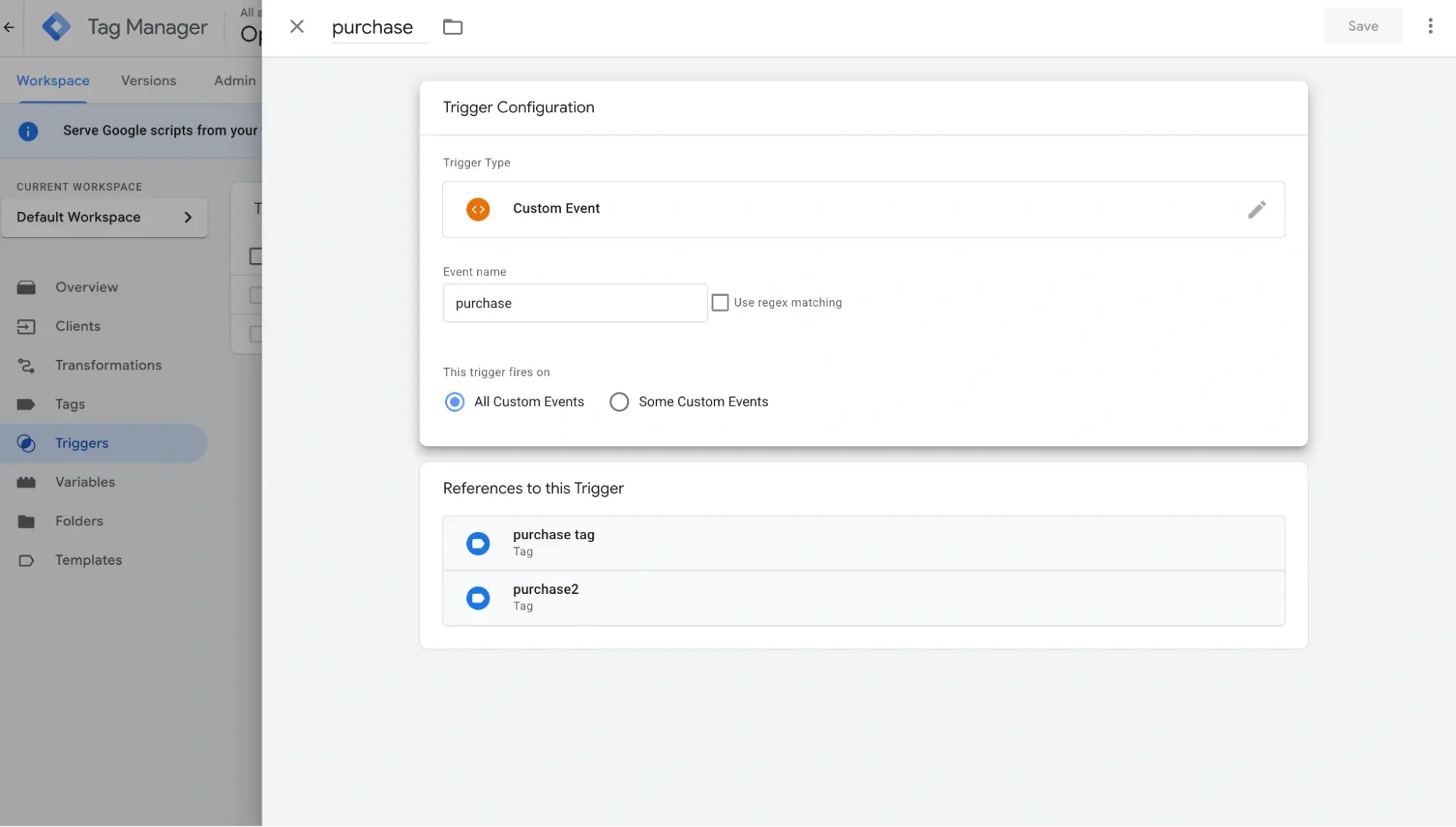
- In the Triggers section, make sure there is a list of events you triggered.
- Trigger Type: “Custom Event”.
- Event name: “purchase” (or any other event you want to triggered).
- This trigger fires on: “All Custom Events”
- In the Tags section, make sure there is a list of events you want to push to GA4.
- Tag Type: Google Analytics: GA4
- Event Name: “purchase” (or any other event you want to push to GA4)
- Firing Triggers: “purchase” (or select the desired trigger)
- Make sure you select “all” for Default Properties to Include and Default Parameters to Include
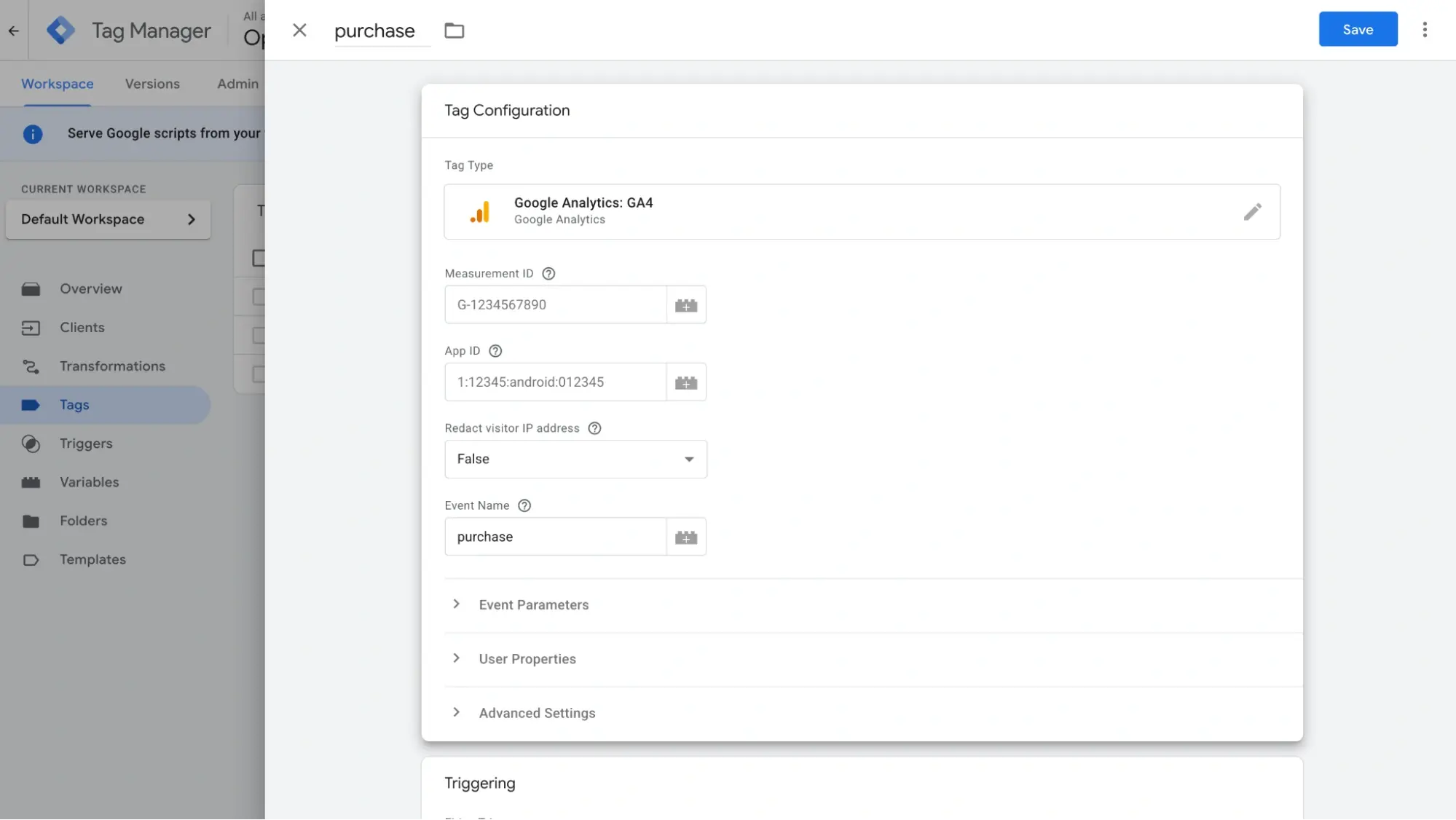
Configuring the Tag Manager container 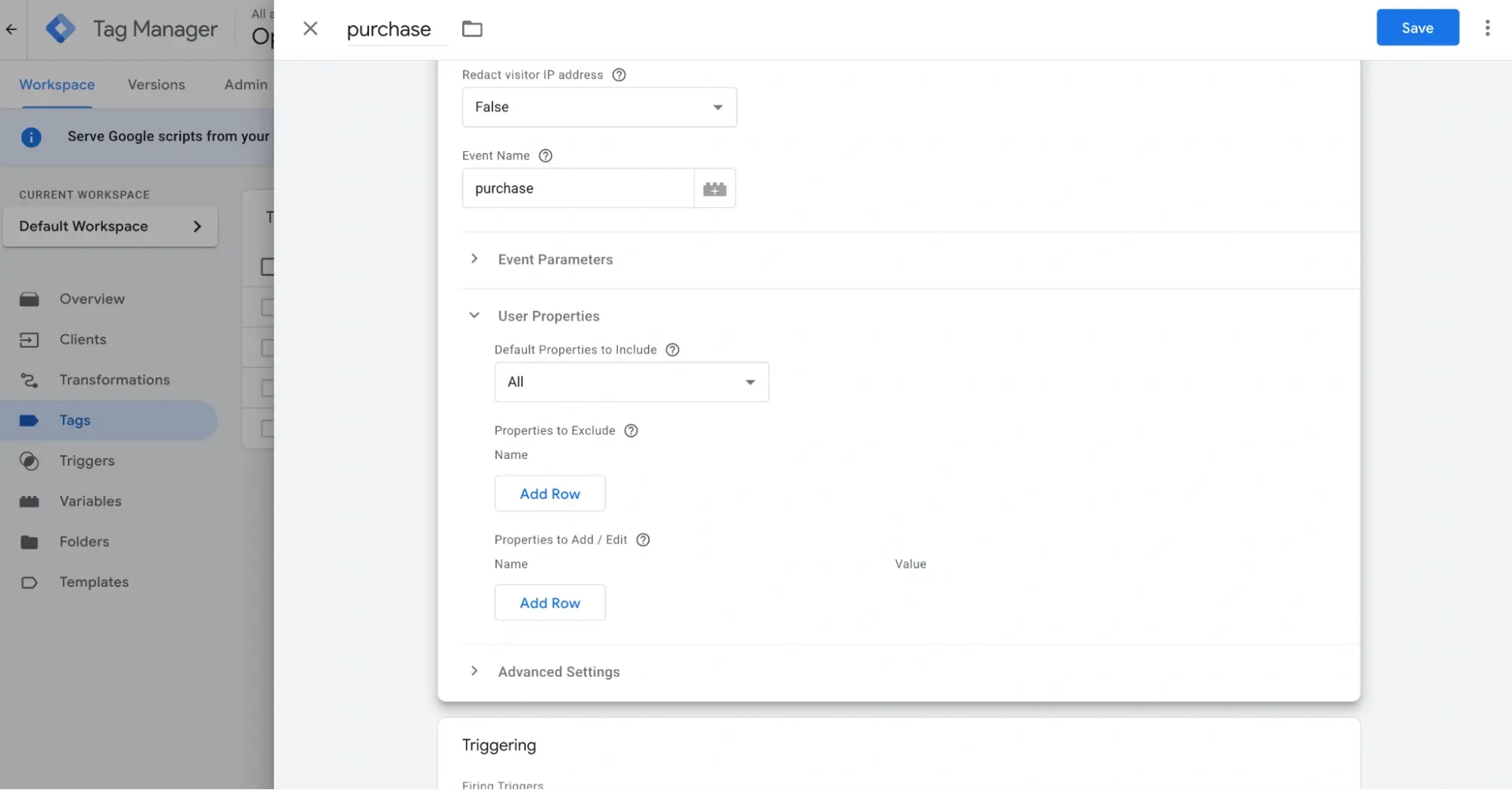
Configuring the Tag Manager container
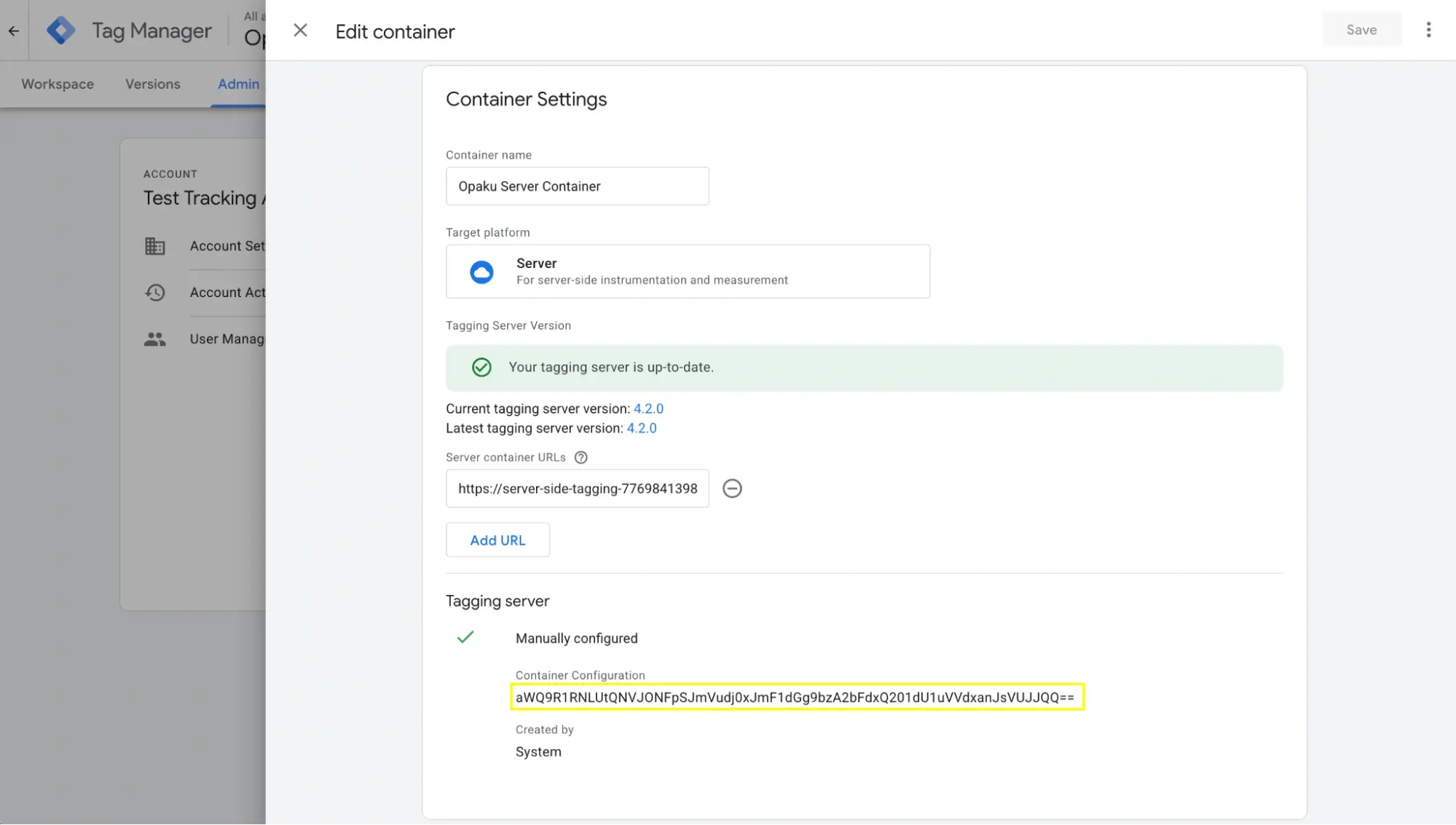
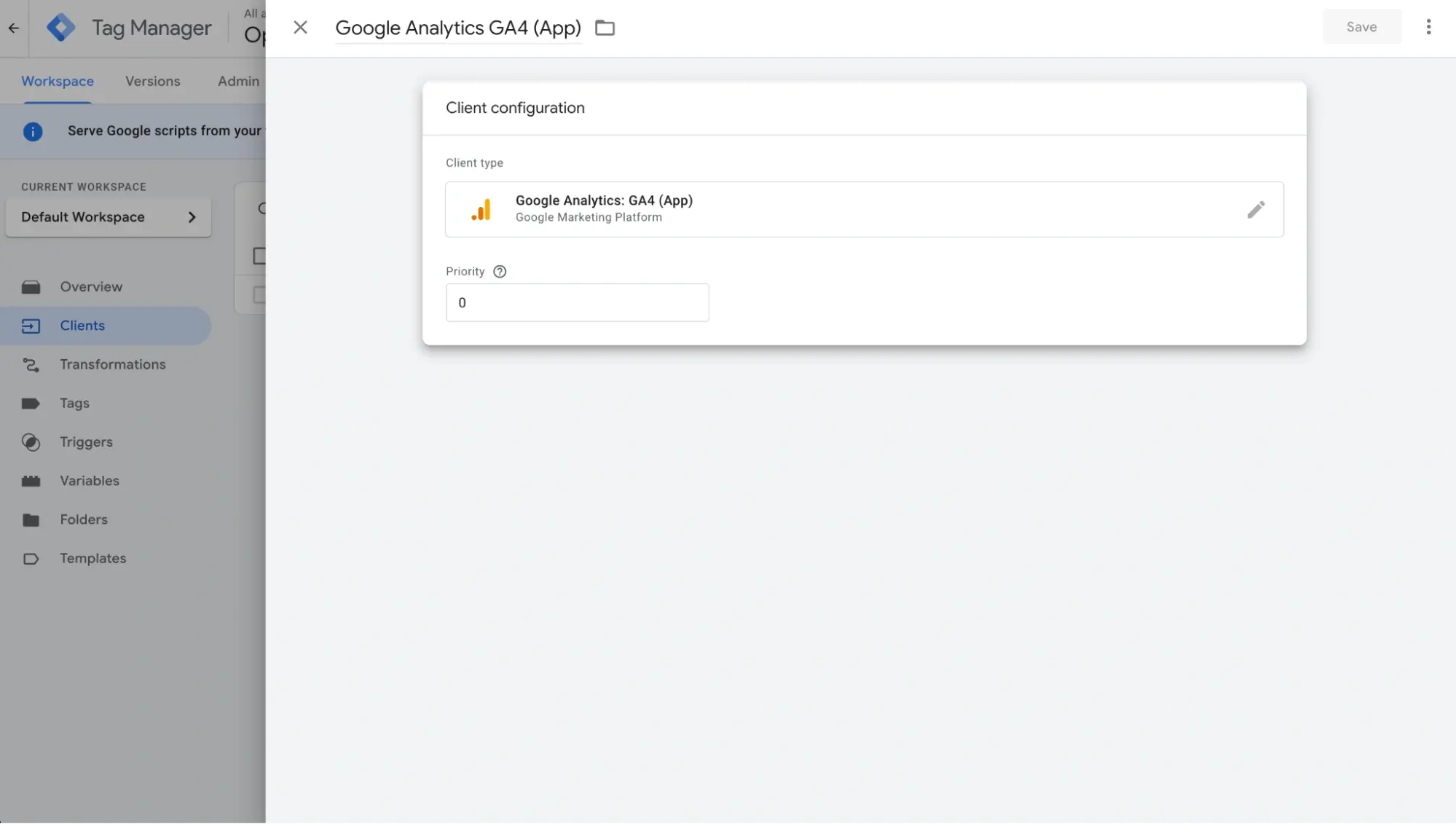
Step B: Deploy Preview Server on Cloud Run
- Go to Google Cloud Console.
- Search for Cloud Run and click Create Service.
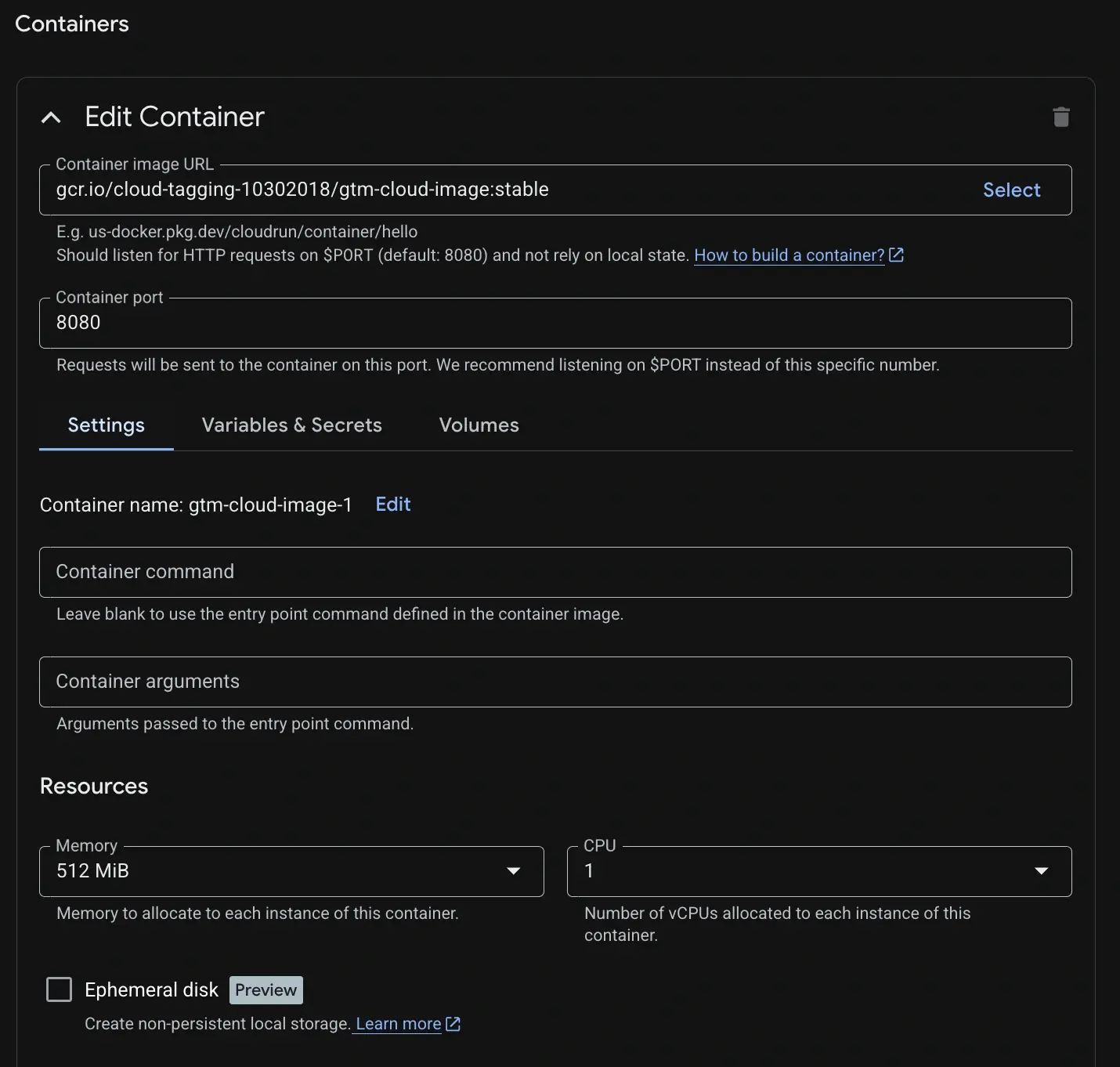
- Use the official GTM image: gcr.io/cloud-tagging-free/google-tag-manager.
- Configuration Requirements:
- Memory: minimum 512MB (recommended 1GB).
- Add RUN_AS_PREVIEW_SERVER: true.
- Add CONTAINER_CONFIG: string from Step A.
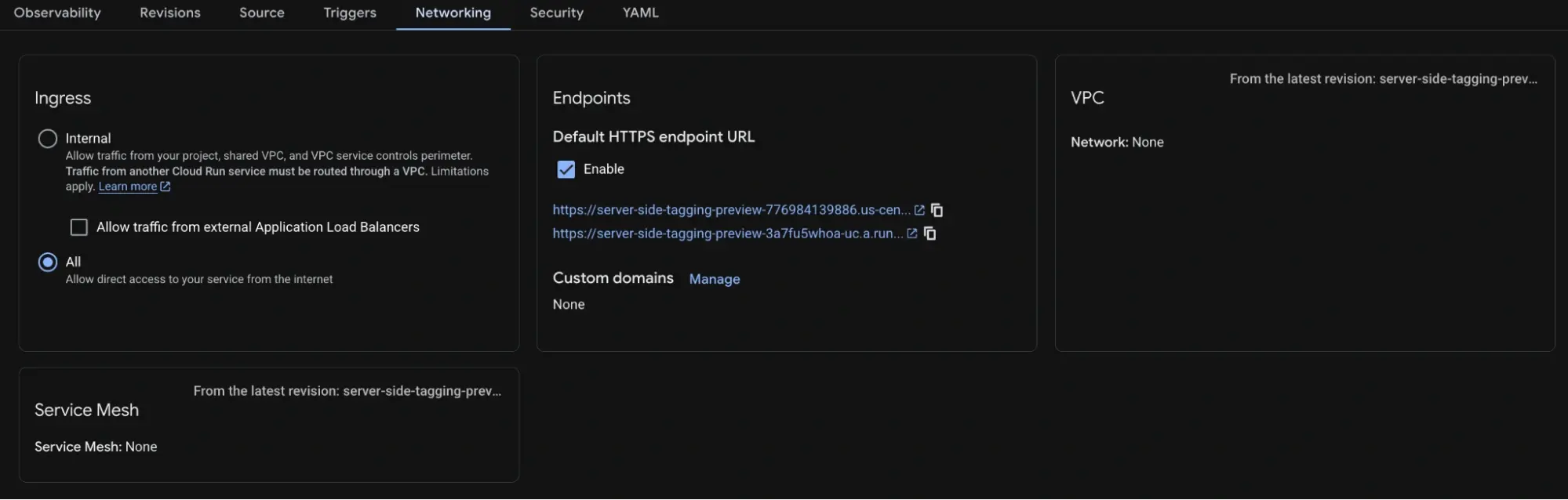
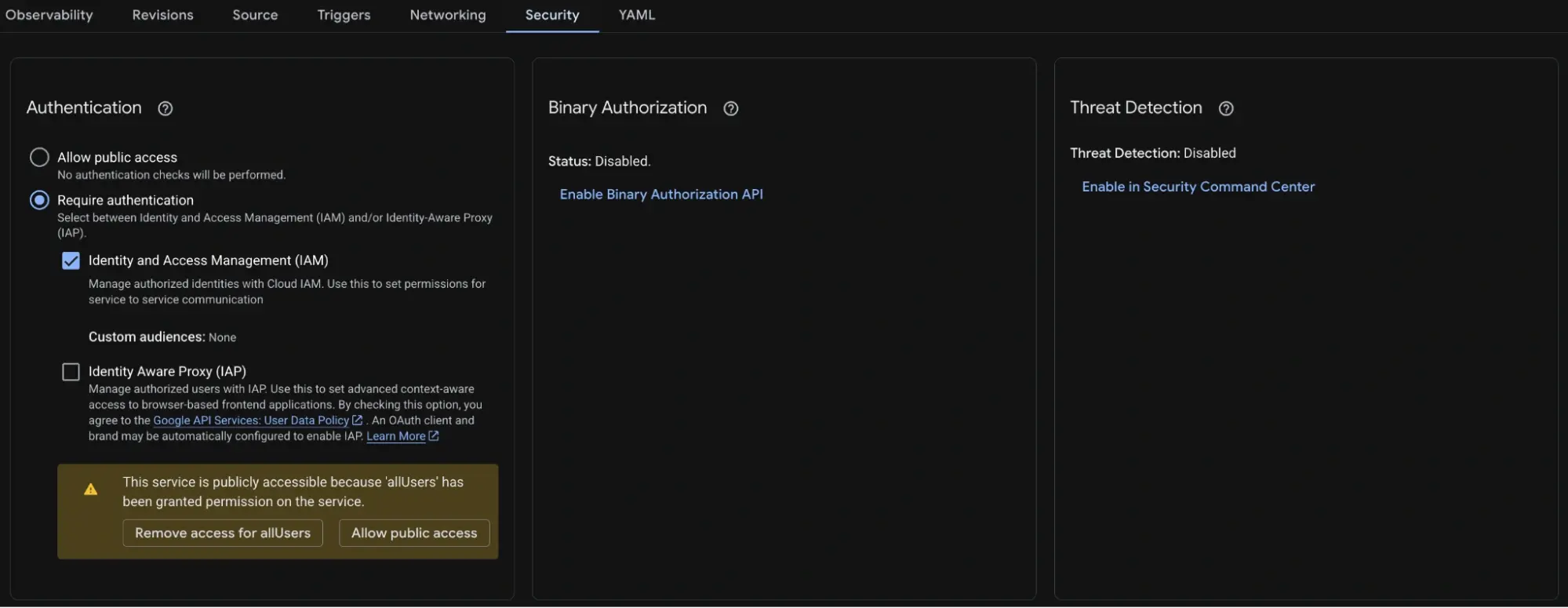
- Add Allow Unauthenticated Invocations: Enabled.
Configuring the Tag Manager container 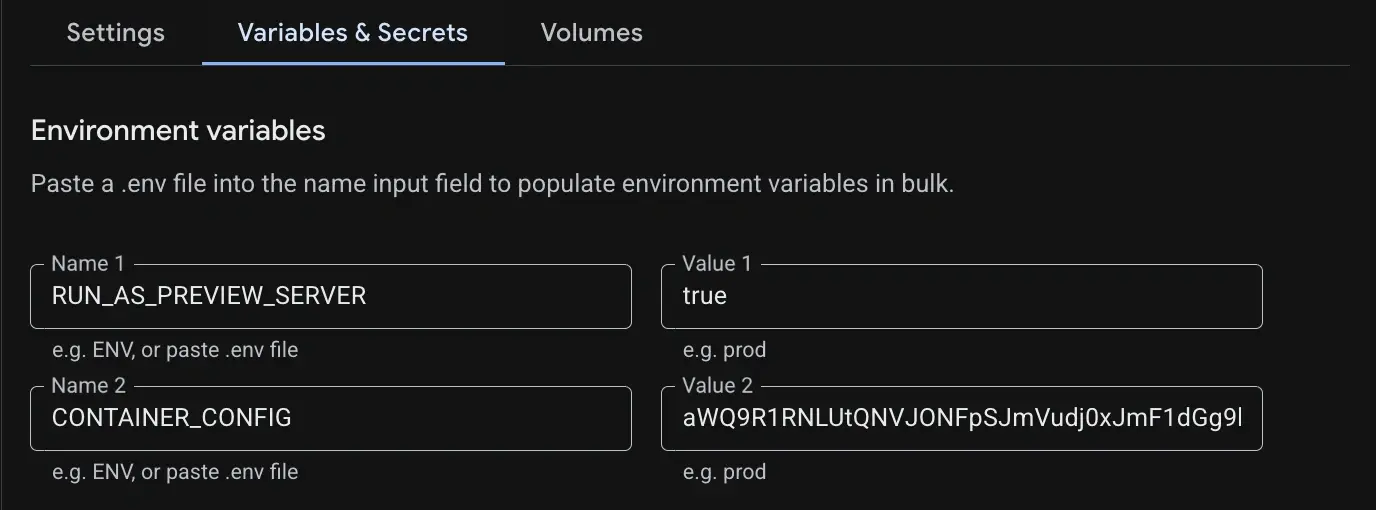
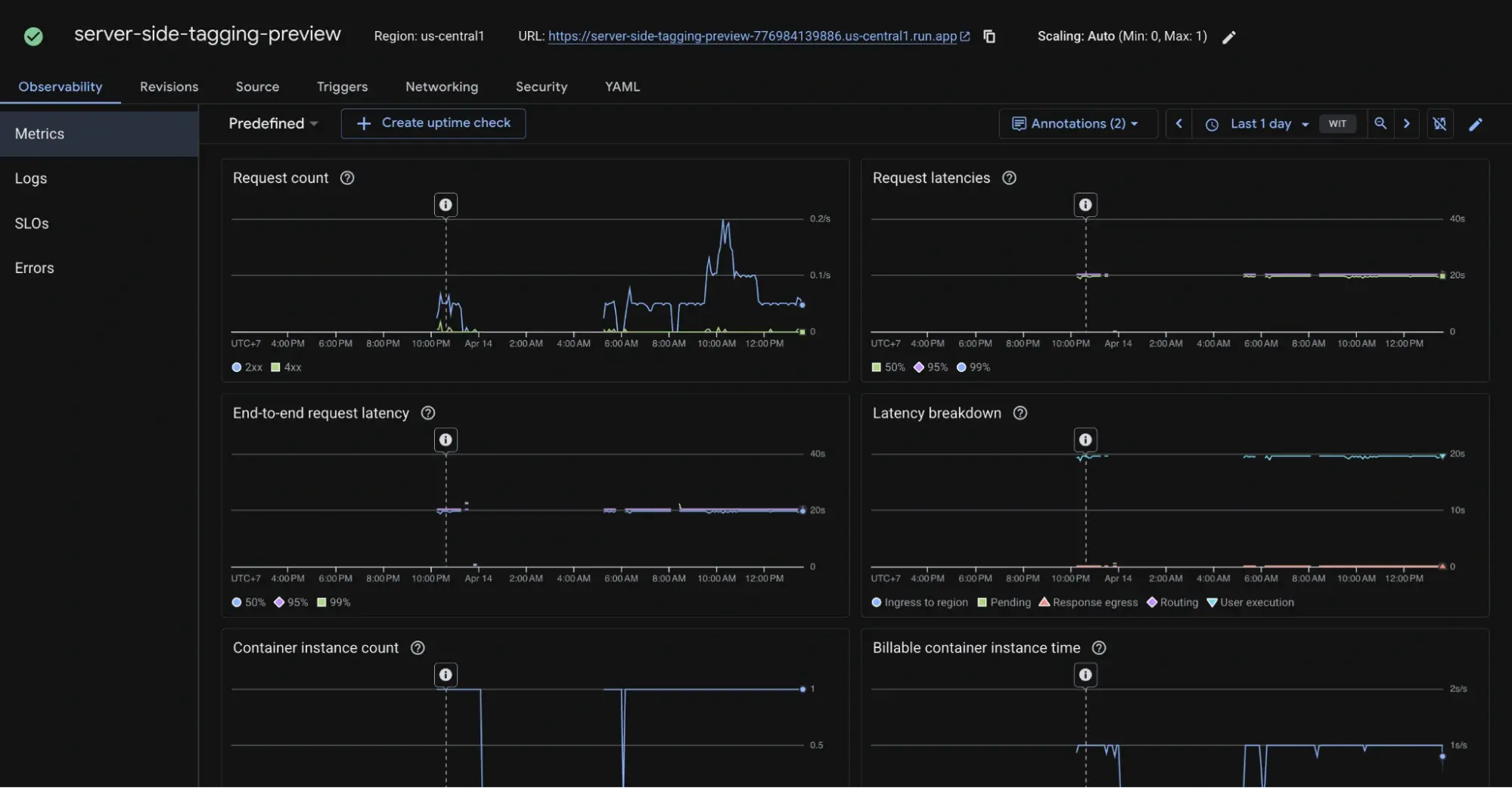
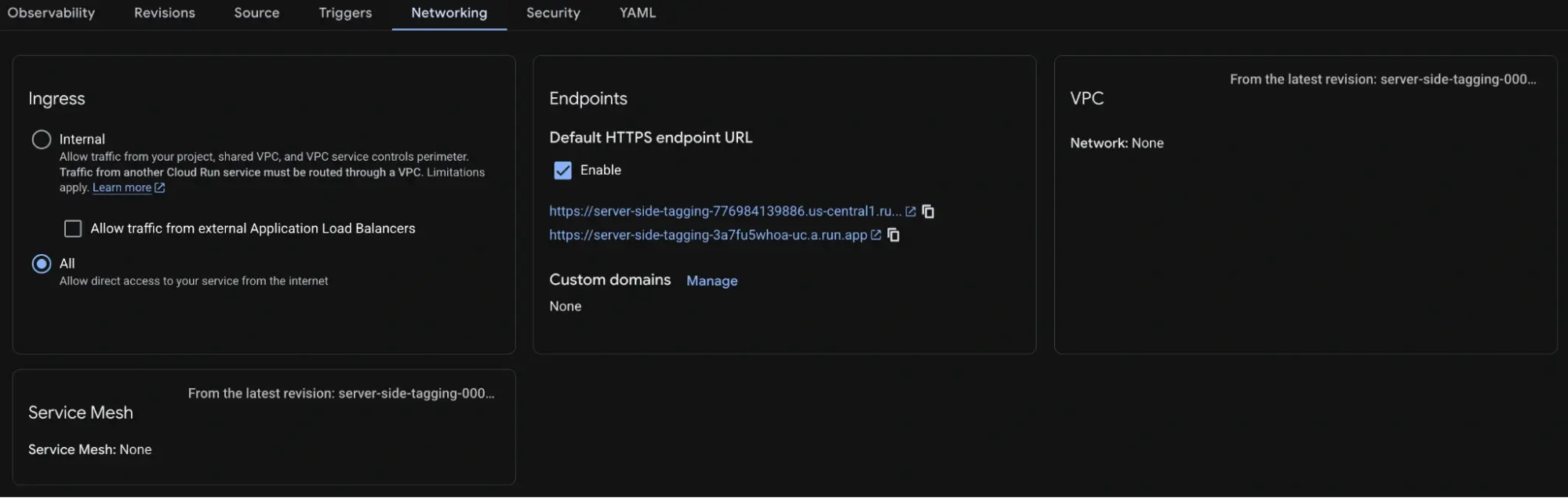
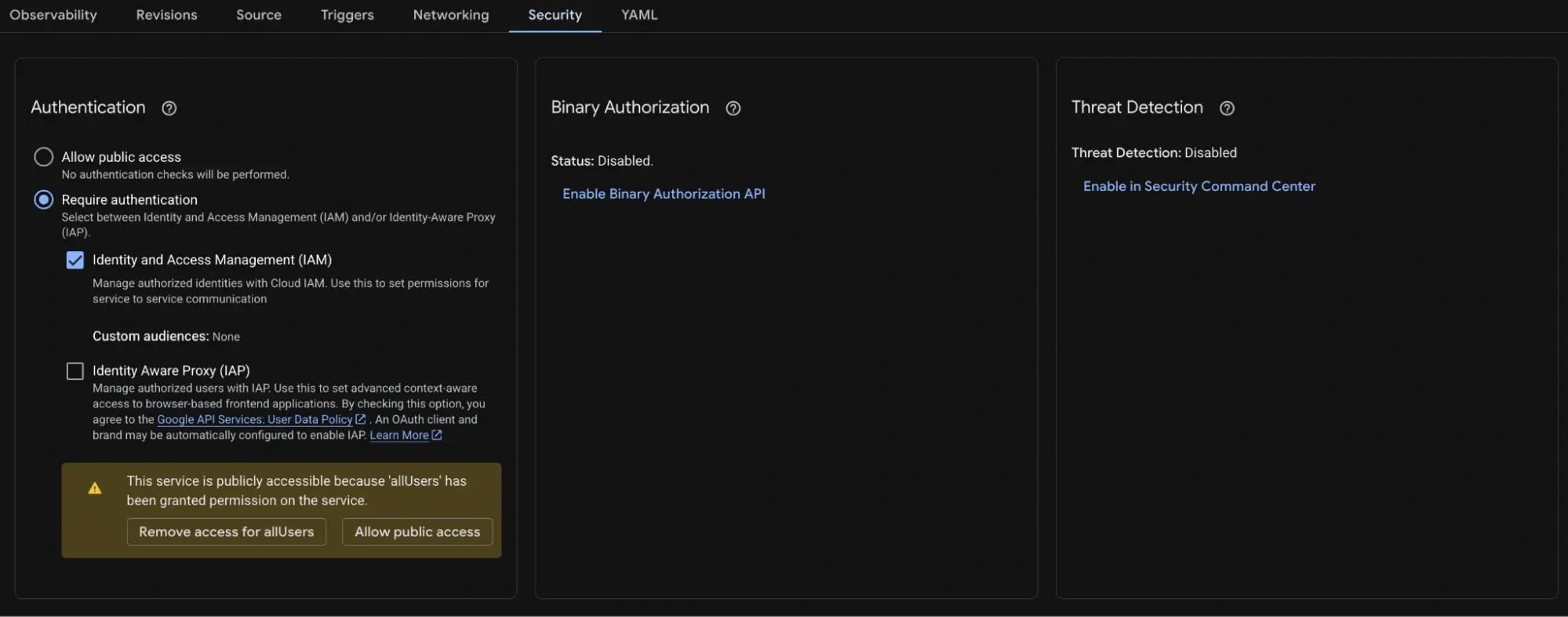
Configuring the Tag Manager container - Make sure the network and security configurations match the image.
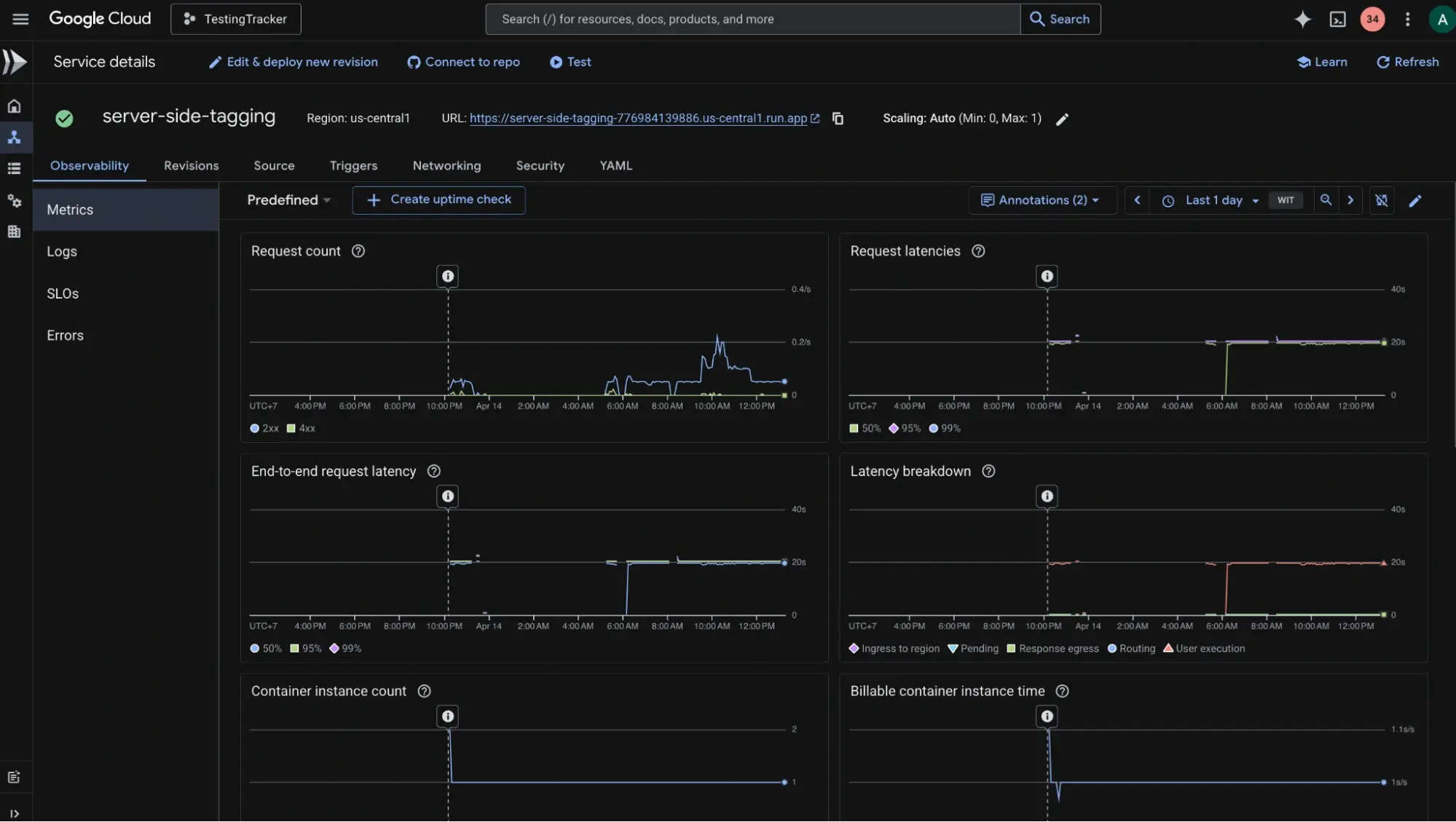
- Once deployed, Cloud Run will provide a Service URL (e.g., https://gtm-xyz.a.run.app).
Step C: Deploy Production Server on Cloud Run
- Go to Google Cloud Console.
- Search for Cloud Run and click Create Service.
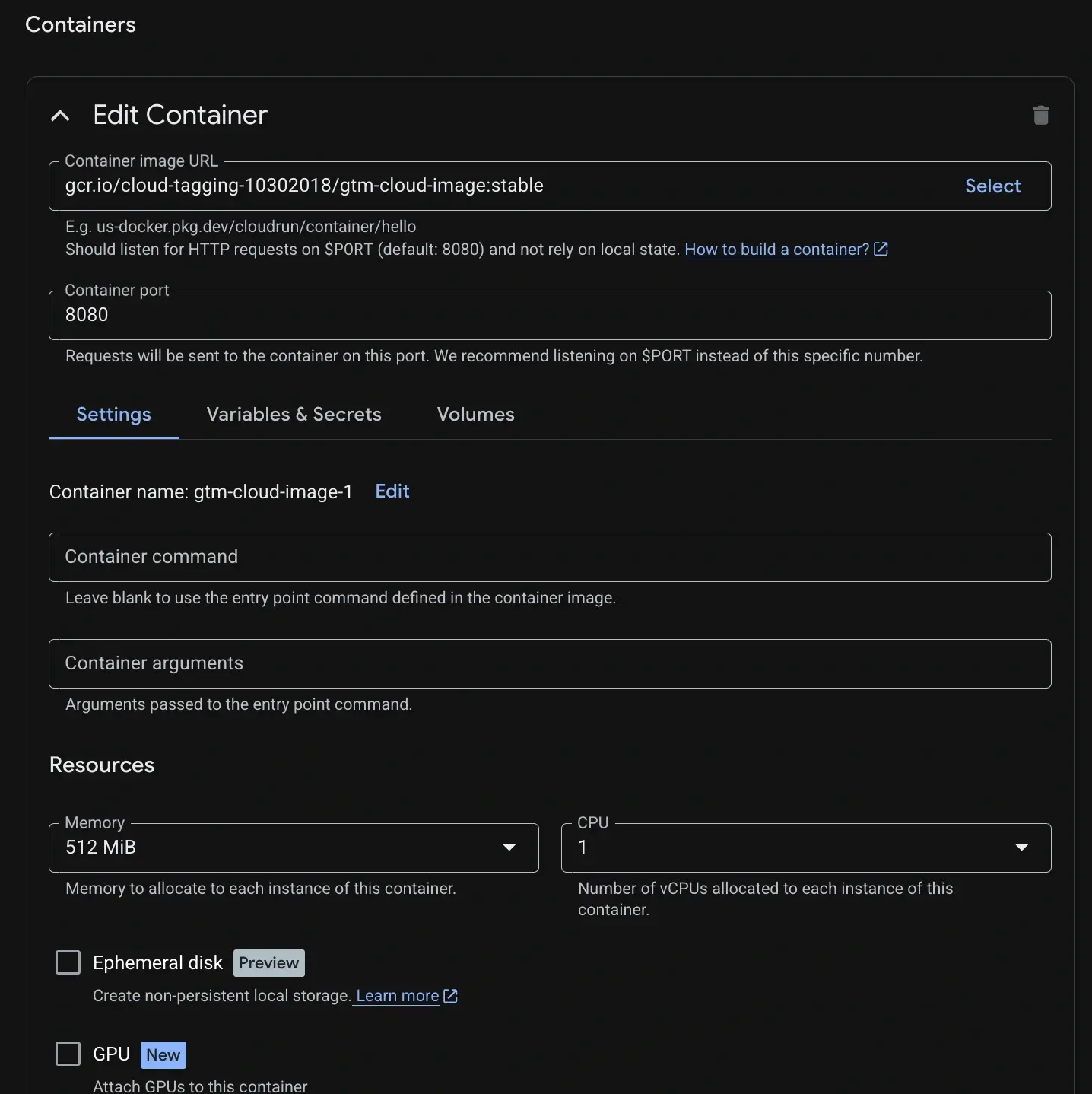
- Use the official GTM image: gcr.io/cloud-tagging-free/google-tag-manager.
- Configuration Requirements:
- Memory: minimum 512MB (recommended 1GB).
- Add PREVIEW_SERVER_URL: the string from Step B
- Add CONTAINER_CONFIG: the string from Step A number 3
- Add Allow Unauthenticated Invocations: Enabled.
Configuring the Tag Manager container 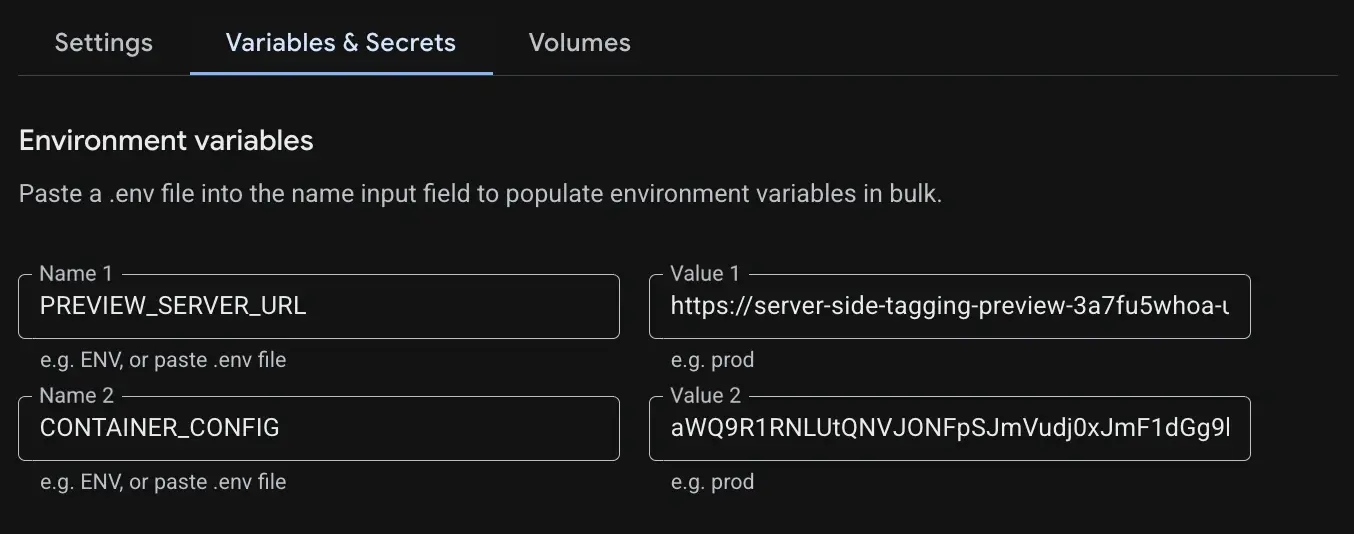
Configuring the Tag Manager container - Make sure the network and security configurations match the image.
- Once deployed, Cloud Run will provide a Service URL (e.g., https://gtm-xyz.a.run.app).
Step D: Configure Google Analytics 4
- Go to Google Analytics.
- Navigate to Admin > Data Stream.
- Select your app stream.
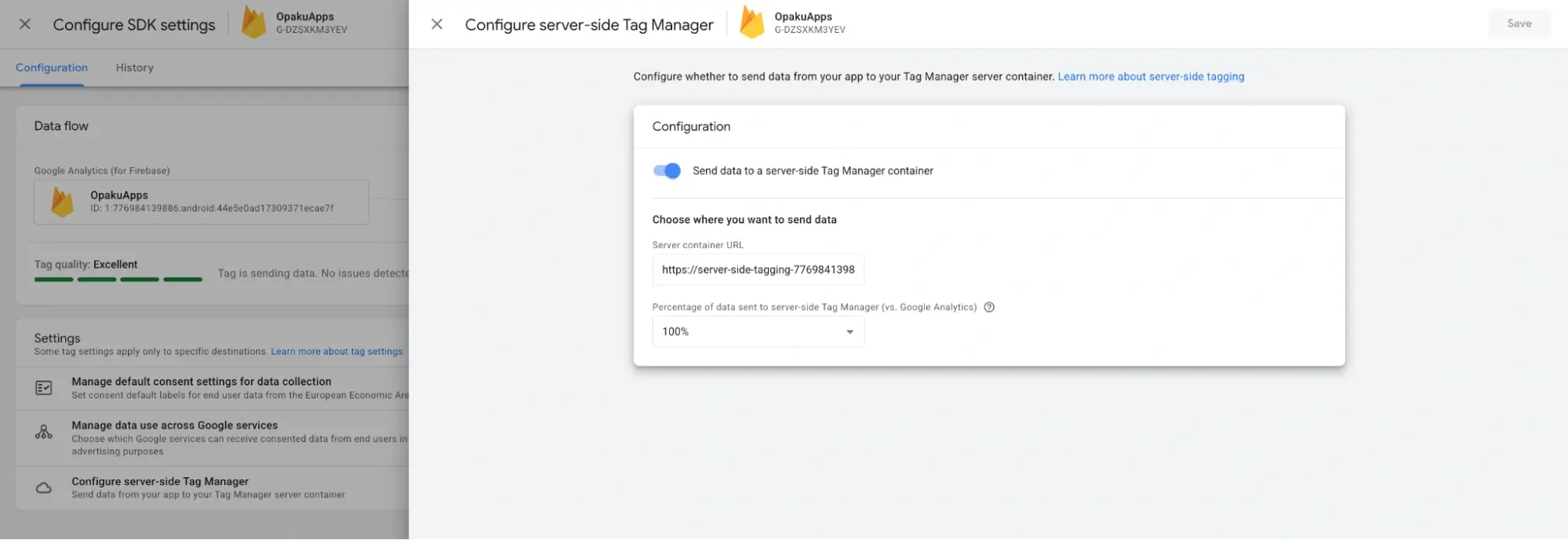
- Open Configure SDK settings.
- Enable Send data to server-side Tag Manager.
- Send data to a server-side Tag Manager container: Enable
- Server container URL: (the string from Step C)
- Percentage of data sent to server-side Tag Manager (vs. Google Analytics): select “100%”
Configuring the Tag Manager container
2. Setting up the Flutter Code
Android Setup
- Add Dependencies
- Add firebase_core ^3.0.0
- Add firebase_analytics ^11.0.0
- Configure AndroidManifest.xml
- Add GoogleAnalyticsServerPreviewActivity.
- Set intent filter with scheme: tagmanager.sgtm.c.PACKAGE_ID.
- Add meta-data firebase_app_measurement_url with Cloud Run URL.
<activity
    android:name="com.google.firebase.analytics.GoogleAnalyticsServerPreviewActivity"
    android:exported="true"
    android:noHistory="true">
    <intent-filter>
        <action android:name="android.intent.action.VIEW" />
        <category android:name="android.intent.category.DEFAULT" />
        <category android:name="android.intent.category.BROWSABLE" />
        <data android:scheme="tagmanager.sgtm.c.PACKAGE_ID" />
    </intent-filter>
</activity>

<meta-data
    android:name="firebase_app_measurement_url"
    android:value="STRING_FROM_STEP_1.C" />
iOS Setup
- Enable the server-side tagging upload feature and set up the custom URL scheme for server-side tagging debug mode in the Info.plist file. Replace the BUNDLE_ID on the following with the app's bundle identifier.
<key>CFBundleURLTypes</key>
<array>
  <dict>
    <key>CFBundleTypeRole</key>
    <string>None</string>
    <key>CFBundleURLName</key>
    <string>BUNDLE_ID</string>
    <key>CFBundleURLSchemes</key>
    <array>
      <string>tagmanager.sgtm.c.BUNDLE_ID</string>
    </array>
  </dict>
</array>
<key>GOOGLE_ANALYTICS_SGTM_UPLOAD_ENABLED</key>
<true/>
Flutter Setup
- Configure the Analytics Tracker in your Flutter code to log purchase events.
await FirebaseAnalytics.instance.logPurchase(
  value: 10.0,
  currency: 'USD',
  items: [
    AnalyticsEventItem(itemName: 'Socks', itemId: 'xjw73ndnw', price: 10),
  ],
  coupon: '10PERCENTOFF',
);
Debugging the Implementation
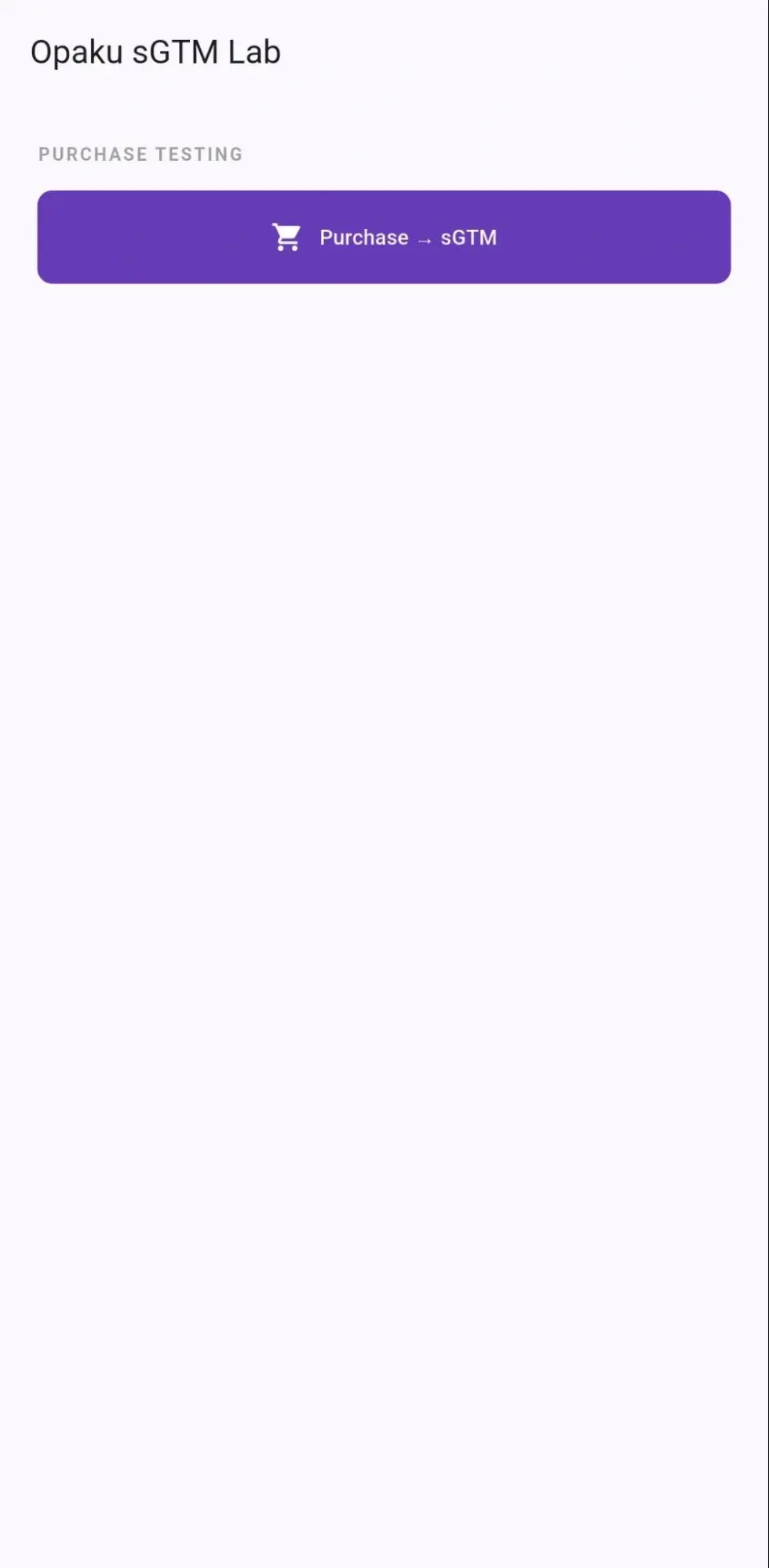
- Run the Flutter app.
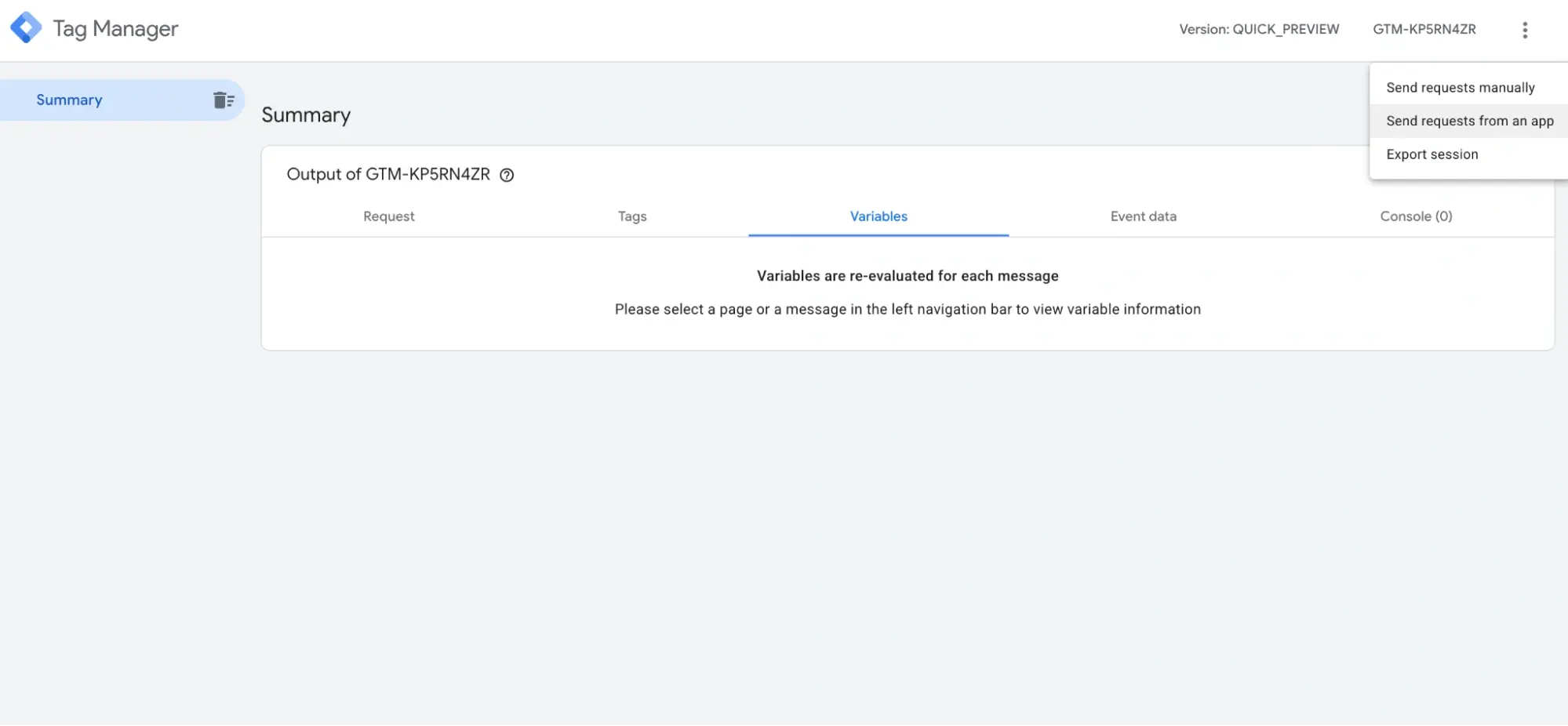
- Open GTM Preview mode.
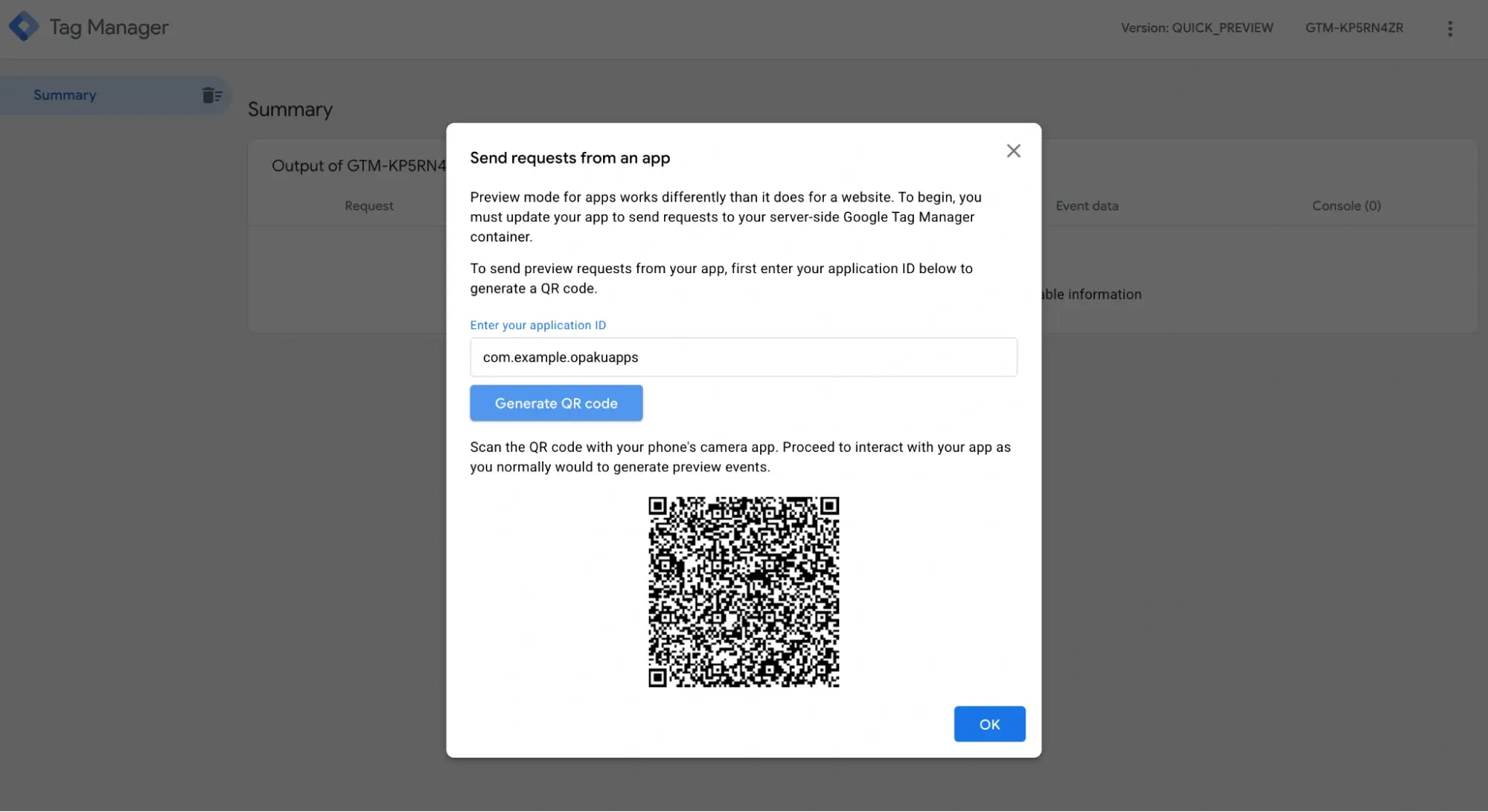
- Click 'Send request from an app'.
- Enter your app package ID.
- Trigger events (e.g., purchase).
Results Verification
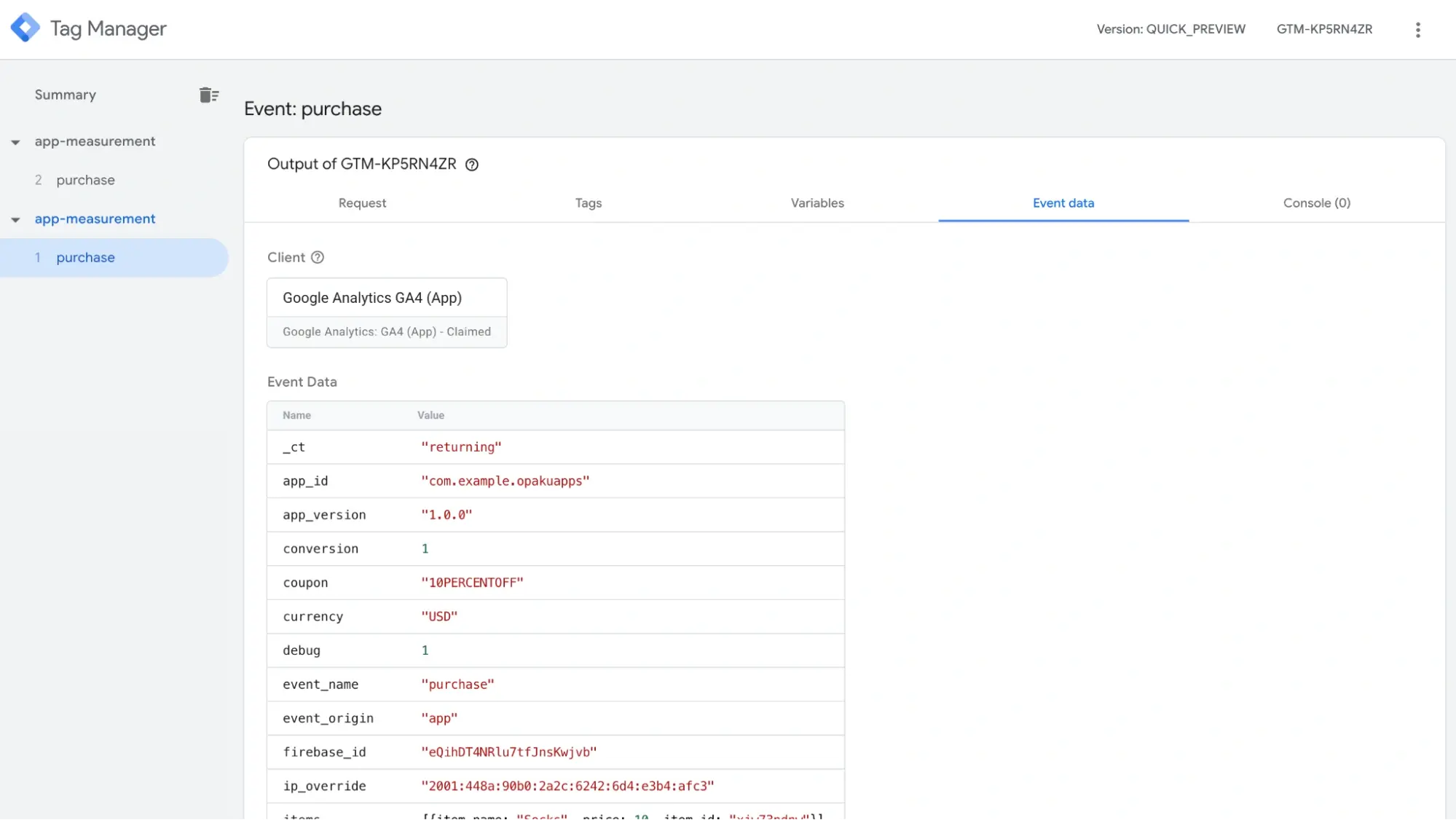
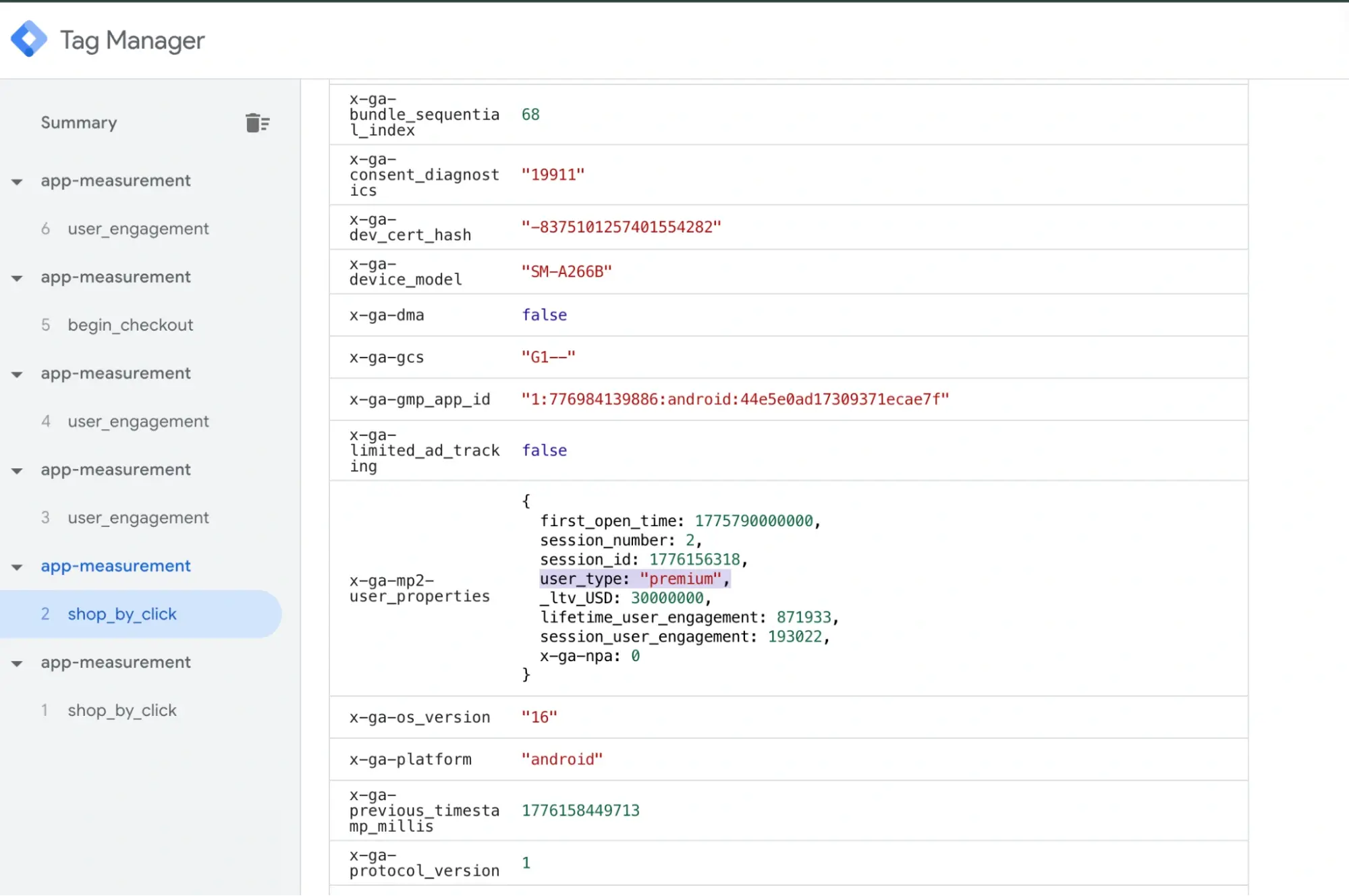
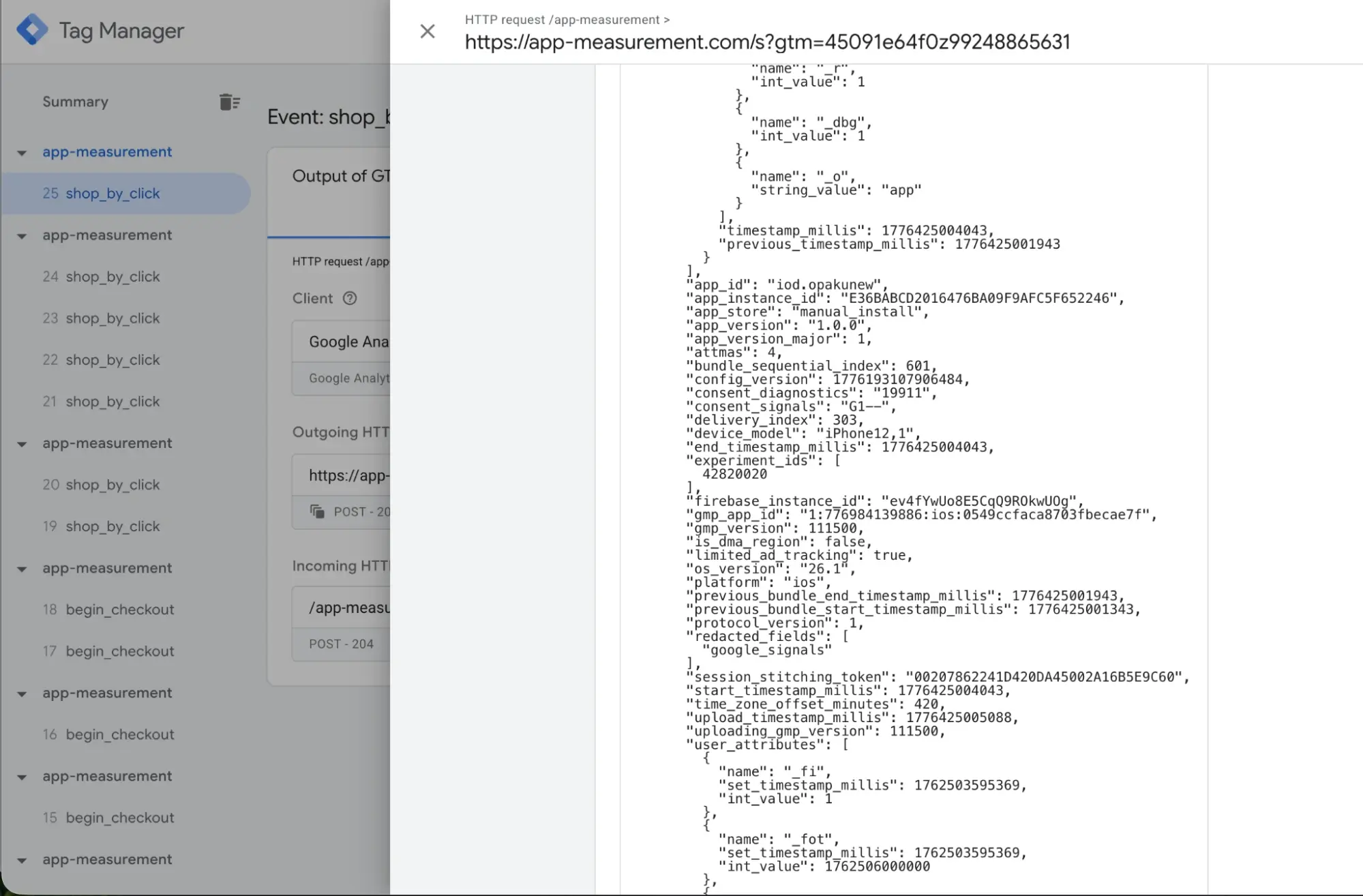
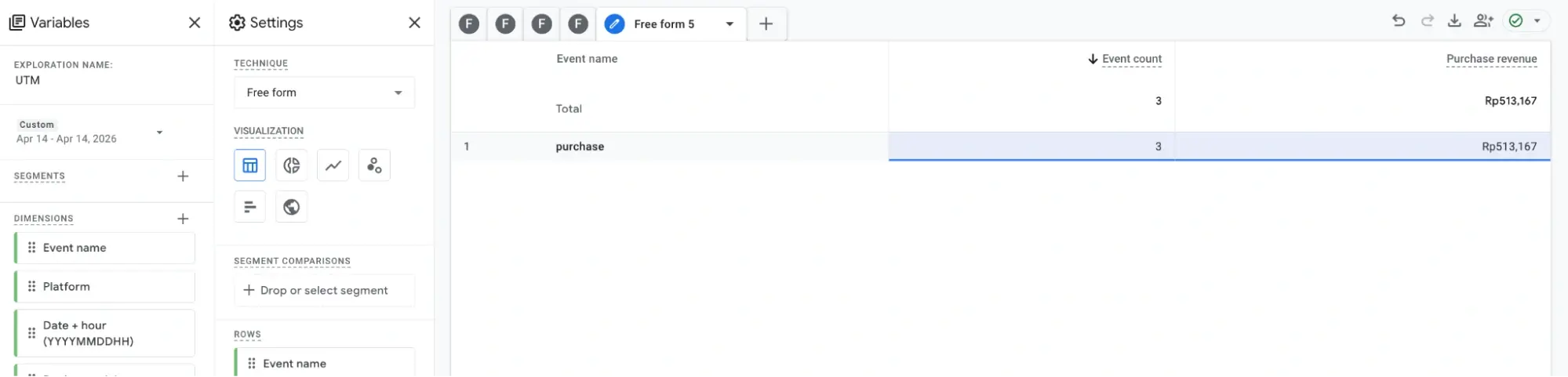
- Check GTM Preview for event properties.
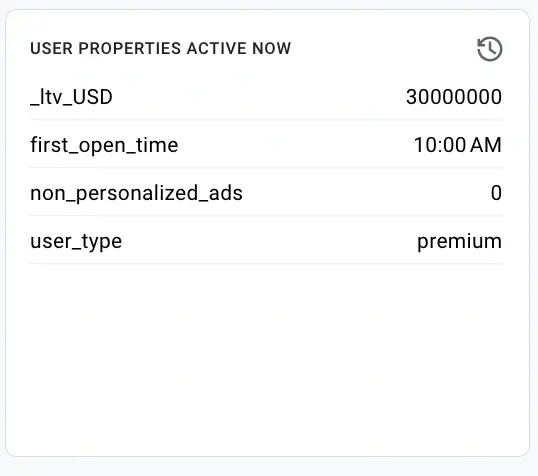
- Verify user properties.
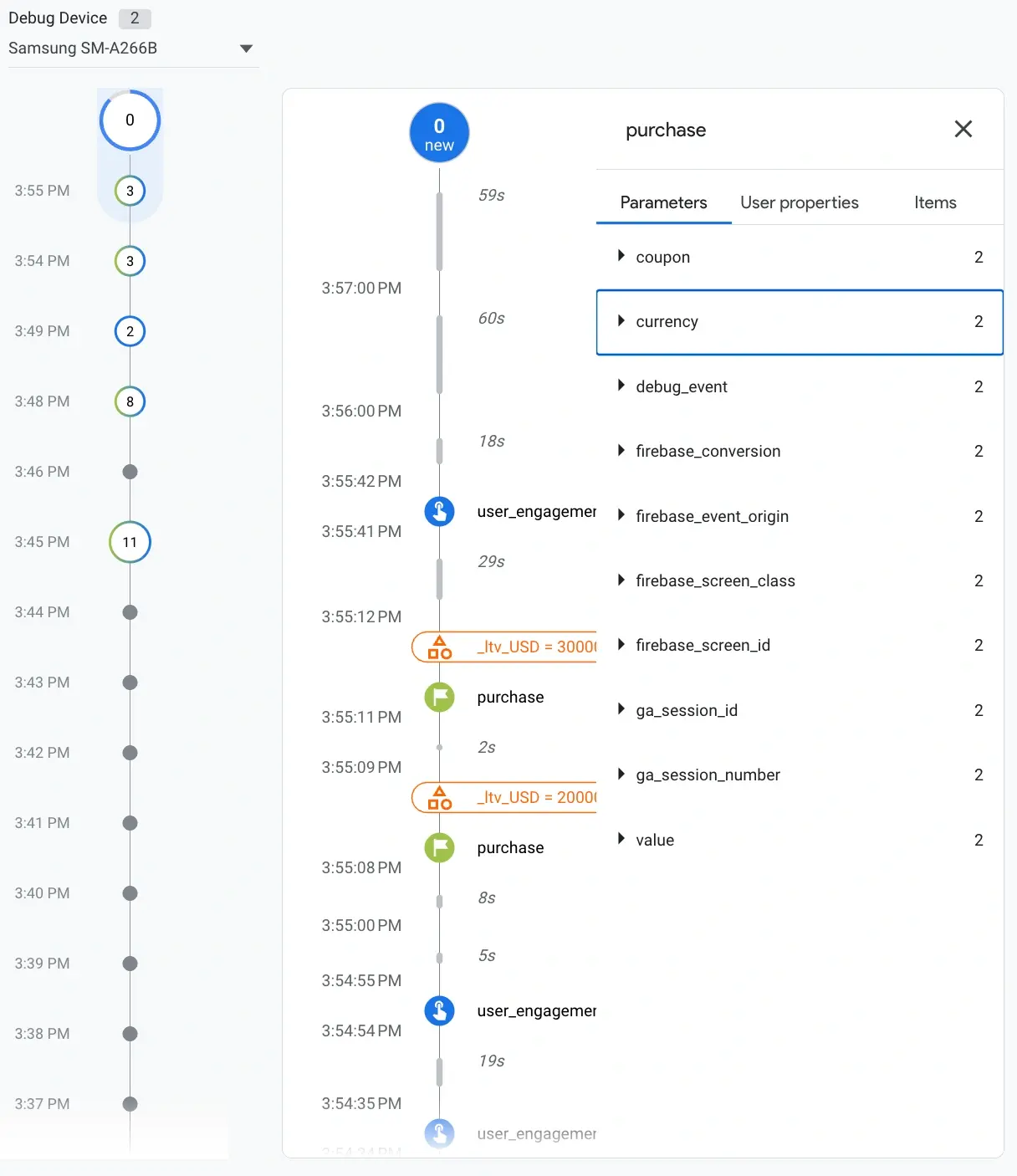
- Check GA4 DebugView.
- Confirm events appear in GA4 reports.
Summary
Server-side GTM acts as a middle layer between your Flutter app and analytics platforms. Instead of sending data directly to GA4, events are routed through Cloud Run, where they can be transformed and distributed to multiple destinations such as GA4, BigQuery, or other tools.
Cost Consideration
Based on GA4 data, around 50,000 monthly mobile hits will incur Cloud Run costs for server-side GTM. Plan infrastructure accordingly.